Set OBS Scene
Change the current scene in OBS Studio.
Settings
OBS Websocket
Select the websocket connection you want to use. You can add new Connections in the OBS Plugin Settings.
Scene
Enter the name of the scene you want to switch to. The Scene value corresponds to the name of the scene in OBS Studio.
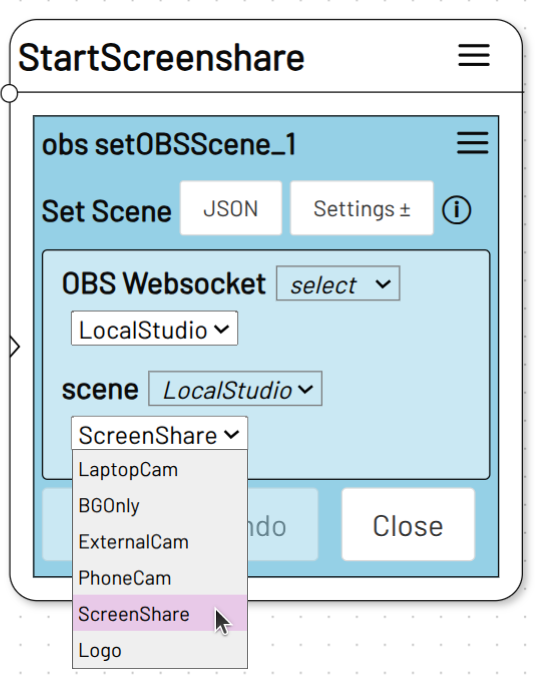
If you have set up multiple websocket connections, select the connection in the dropdown next to scene to load the available scene names.
If you have created, changed or deleted a scene, you may need to reload the level view in the adaptor:ex editor to update the dropdown.
If you want to define the scene via a variable, select custom in the dropdown next to scene and use a variable. E.g.: [[nextScene]] or Scene_[[scene_number]]
Example
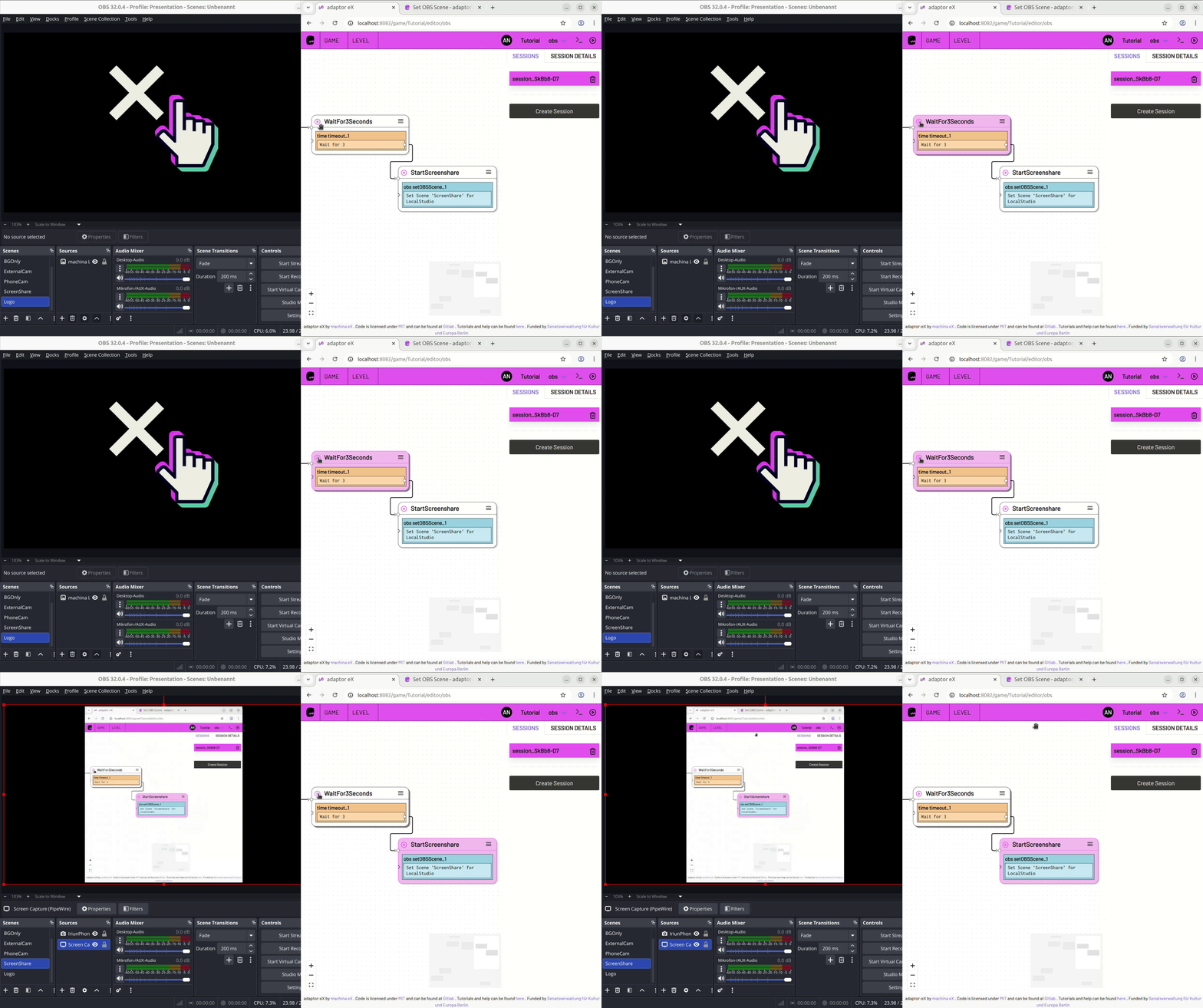
Set up an OBS Websocket connection and create scenes to your liking in OBS Studio.
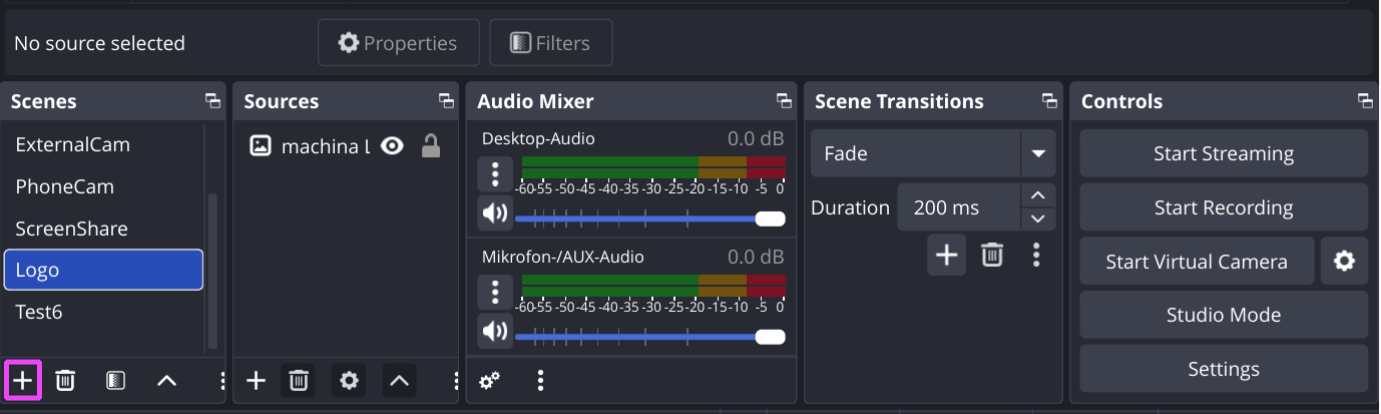
BAck in adaptor:ex, add a Set OBS Scene action to the level.
If necessary, select the websocket connection and the scene to switch to.
Start a new session or use a running session to trigger the state with the Set OBS Scene action.