On OBS Event
React to events from OBS Studio. The OBS Websocket Protocol describes all events that you can listen on and catch via On OBS Event.
Settings
OBS Websocket
Select the websocket connection whose events you want to listen to. You can add new connections in the OBS plugin settings.
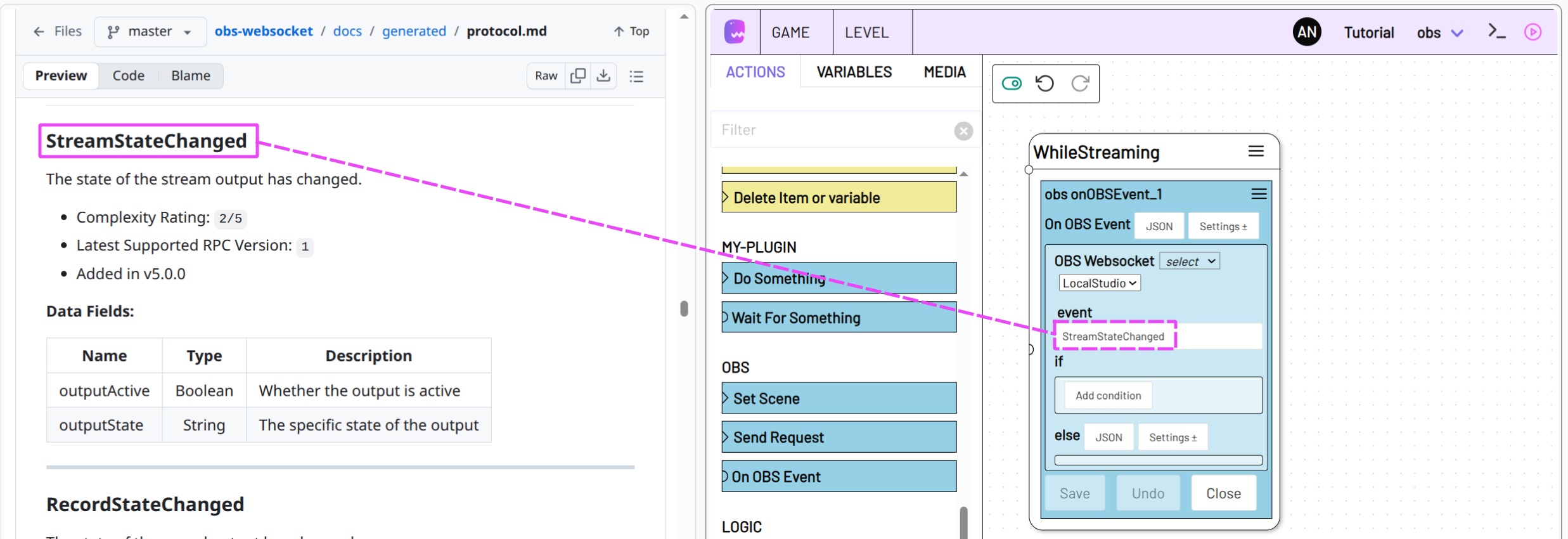
event
The name of the event you want to react to. You can find all available event names in the OBS Websocket Protocol.
Copy the event name from the Websocket Protocol website and paste it into the event field.
if
Check the event data of incoming events and trigger the next state if the condition matches.
In the chapter Querying conditions you can find out in what ways you can query the event data.
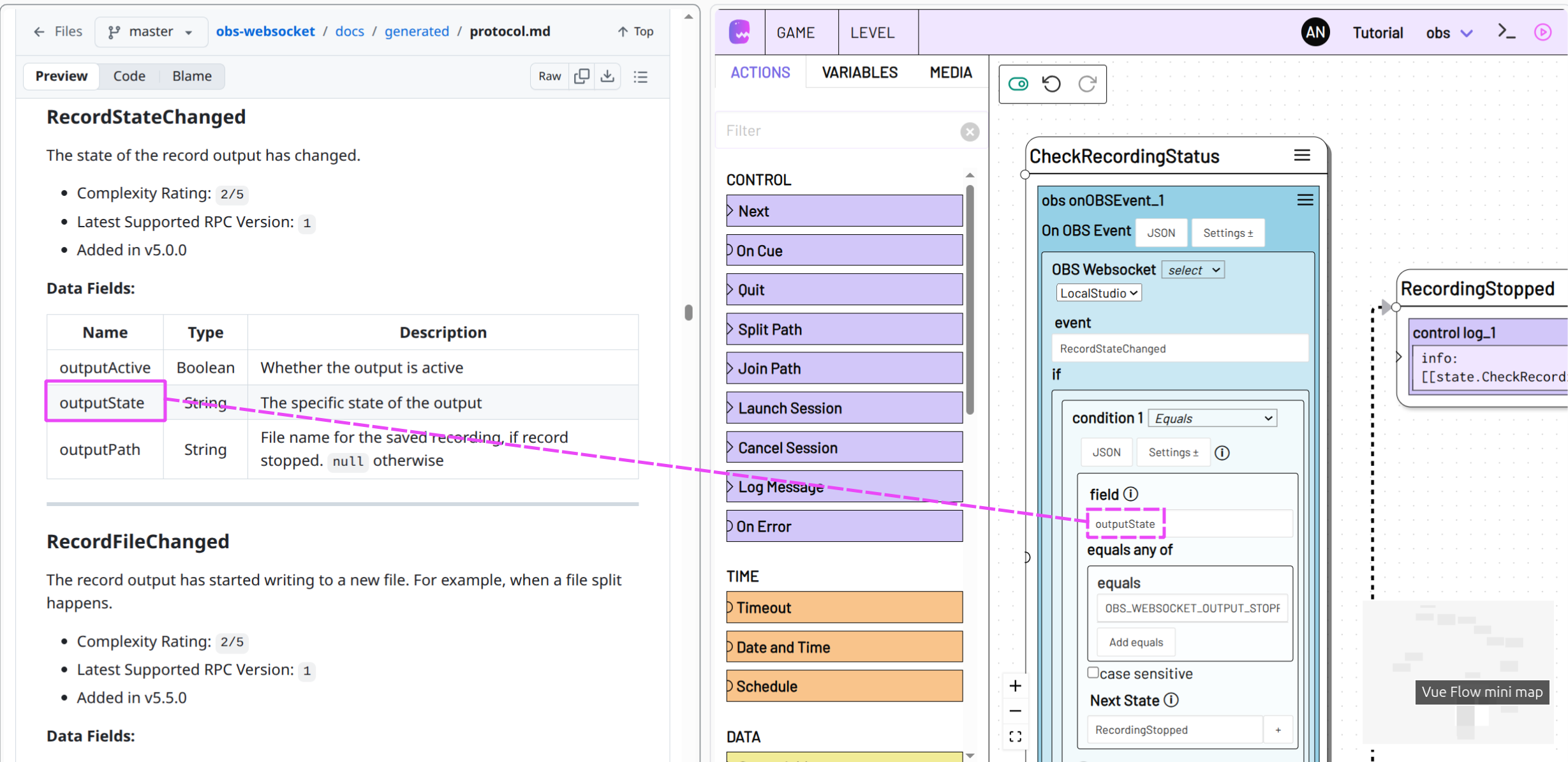
The value to check inside the condition is the event data of the incoming event. The Data Fields of the respective event in the OBS Websocket Protocol show what data to expect.
field
Use field to query a specific value within the event data. You can use dot notation to specify nested values.
For example, to check the recording status in the event RecordStateChanged enter
under field.
else
Specify the next state that is triggered if none of the if conditions apply to the event data or if you have not specified an if condition.
If you have not defined an if condition, the system always triggers the else next state the moment the specified event occurs.
keep listening and queue
*optional
Mute the event listener instead of closing it completely when the state containing On OBS Event is exited.
The system will then no longer react to incoming OBS events, but the incoming events will be stored.
If the state containing this On OBS Event action is triggered again, the stored messages are checked first before the listener starts to listen for further messages.
Info
In the chapter on Loops you will find additional information on keep listening and queue
Action data
You can access the data of the latest incoming OBS event that you are listening for in the Action Data variable. Use for example:
to access the path of the recording in the incoming event of the upmost On OBS Event action in the CheckRecordingStatus state.
name
The name of the event On OBS Event was listening for.
match
The part of the event data that fulfilled an if condition in the On OBS Event action.
data
Event data of the event On OBS Event was listening for.
The Data Fields of the respective event in the OBS Websocket Protocol show you what data to expect.