Files and Folders
Version 2.11
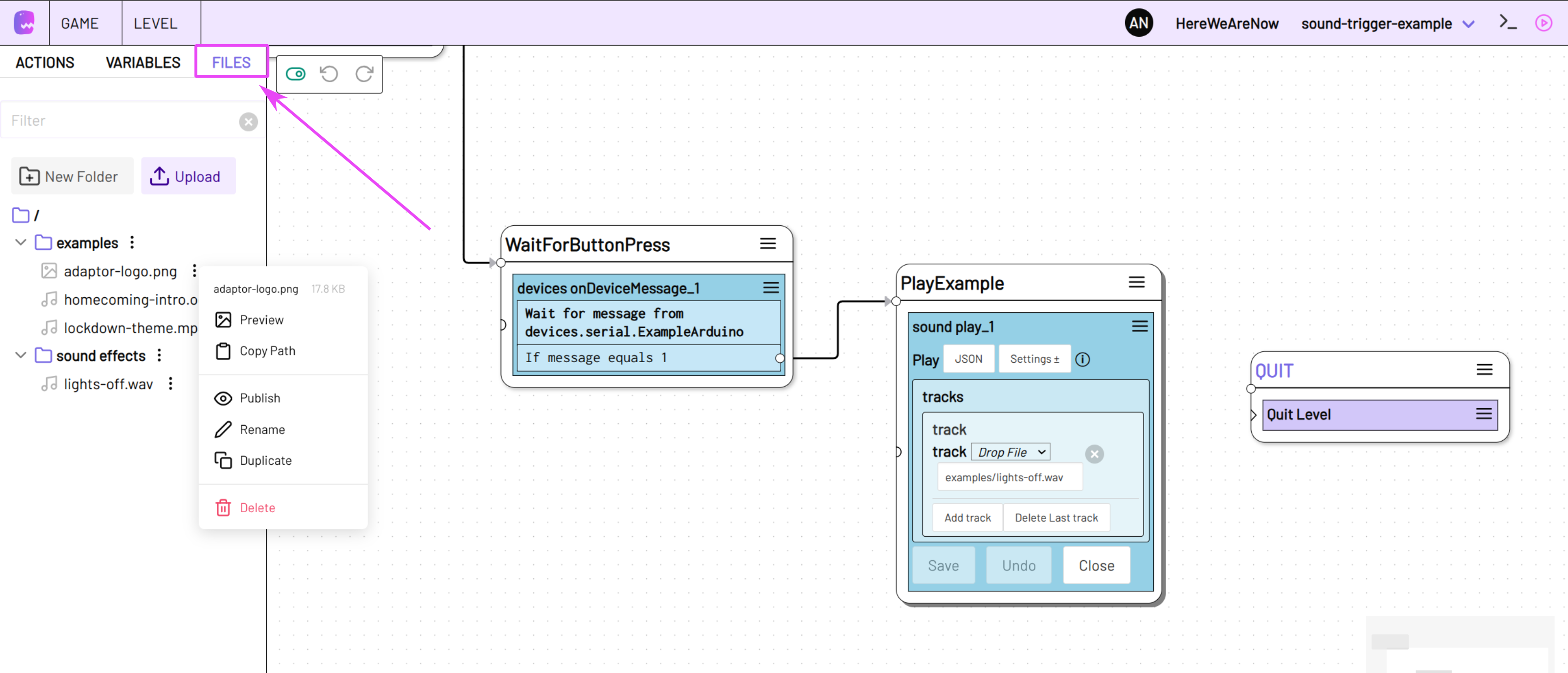
Mundane Hooray 💼! You can now upload, copy, move, rename and delete files in the FILES TOOLBAR formerly known as MEDIA.
Follow update instructions for your Setup: Install
You can create new directories and upload files using the New Folder and Upload button.
Drag and Drop files to move them into another directory or drag them onto the stage to use them in one of your actions.
Use right click on a file to preview the file, rename, delete or duplicate it.
Right click on a folder to rename or delete it or to add a new sub directory or upload files into the current folder.
It is still possible to use your file explorer for file management. The FILES TOOLBAR will be synced with your actual file tree in the adaptor:ex directory.
As of v2.11.0 files will also be secured by the authentication method of your adaptor:ex setup. Use right click and publish on files and folders to make them accessible without authentication wherever your server is accessible from.
If you already access your files on other websites or apps
Files are not public by default any more! If you secured your adaptor:ex setup with authentication you have to explicitly set files to be public to access them without credentials.
Also the Devices Plugin gained a new Action On Device Message. You can use it instead of the On Event Action to react on incoming messages from any of your OSC, HTTP, Serial, TCP or UDP Connections.
More news in Version 2.11:
- Added files upload and management
- Added On Device Message Action for Devices Plugin
- Added open editor in default browser (open) command and option
- Allow
logcommand as alternative forlevelcommand - Added Windows PowerShell mediaplayer to Sound Plugin
- Added select audio player option to Sound Plugin settings
- Added wav audio file (success.wav) to examples
- Check for updates & log latest version to Commandline
- Changed Mousewheel Zoom key for Editor from Meta to Ctrl